> ## Documentation Index
> Fetch the complete documentation index at: https://docs.shiftkeeper.io/llms.txt
> Use this file to discover all available pages before exploring further.
# On-call shifts
> View your on-call shifts and export them to your calendar app
 1. Go to the Shiftkeeper home tab.
2. Click on the `My shift calendar` button.
Simply go to the [On-call Shifts](https://app.shiftkeeper.io/oncalls) page.
The calendar view also enables to you take quick actions on a shift, e.g., [override a shift](/shiftkeeper/schedules/overrides) or [ask for coverage](/shiftkeeper/coverage).
## Calendar app integration
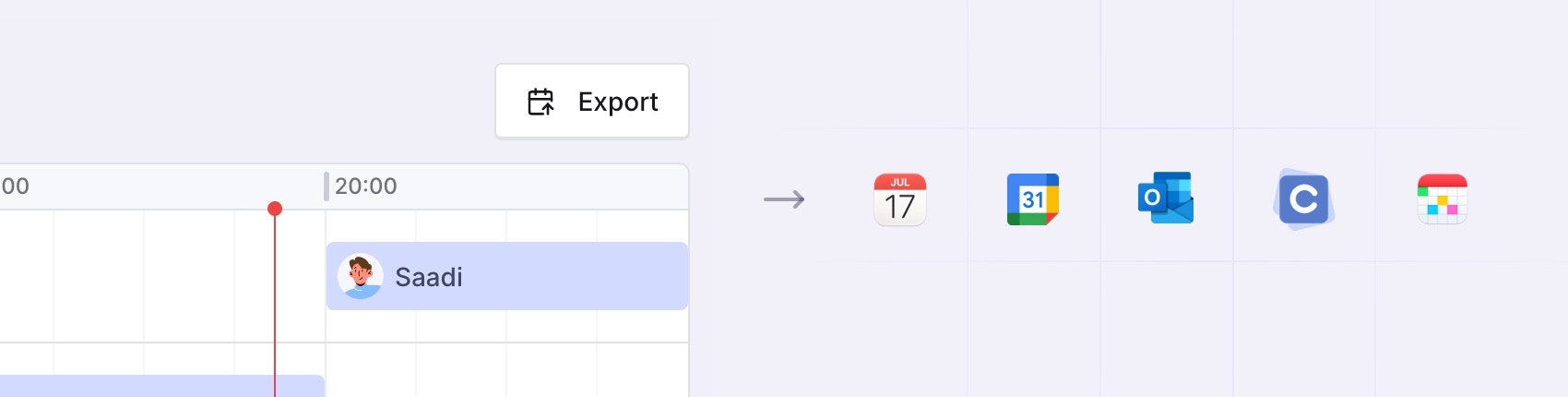
You can export your on-call shifts across all schedules to your calendar app, e.g., Google Calendar, Apple Calendar, Outlook, etc.
To export only a single schedule, refer to the [schedule shift calendar](/shiftkeeper/schedules/shift-calendar) guide instead.
### Exporting your on-call shifts to your calendar app
The guide below refers the Apple Calendar app. The flow is similar for other calendar apps.
1. Go to the Shiftkeeper home tab.
2. Click on the `My shift calendar` button to view your shifts and scroll down to the `⬆️ Export` section.
3. Click on the `Export` button and copy the displayed iCal URL.
4. Open the Apple Calendar app.
5. Choose `File > New Calendar Subscription`.
6. Enter the copied iCal URL, then click `Subscribe`.
7. Adjust the subscription settings as preferred and click `OK`.
1. Go to the [On-call Shifts](https://app.shiftkeeper.io/oncalls) page.
2. Click on the `Export` button.
3. Copy the displayed iCal URL.
4. Open the Apple Calendar app.
5. Choose `File > New Calendar Subscription`.
6. Enter the copied iCal URL, then click `Subscribe`.
7. Adjust the subscription settings as preferred and click `OK`.
Any changes to your on-call shifts will be reflected in the calendar feed automatically, no manual updates are needed.
Changes might take some time to be reflected in your calendar, depending on the auto-refresh period you have selected for the calendar subscription.
Shifts which have finished more than two months ago are not exposed in the calendar feed.
### Calendar alerts
By default, the calendar feed is setup to trigger a notification 15 minutes before your on-call shift starts. You can disable these notifications
when creating the calendar subscription.
### Calendar app subscription guides
Below you can find a few guides on how to create calendar subscriptions in popular calendar apps.
* [Apple Calendar](https://support.apple.com/guide/calendar/subscribe-to-calendars-icl1022/mac)
* [Google Calendar](https://support.google.com/calendar/answer/37100), under the `Use a link to add a public calendar` section
* [Outlook](https://support.microsoft.com/en-us/office/import-or-subscribe-to-a-calendar-in-outlook-com-or-outlook-on-the-web-cff1429c-5af6-41ec-a5b4-74f2c278e98c)
1. Go to the Shiftkeeper home tab.
2. Click on the `My shift calendar` button.
Simply go to the [On-call Shifts](https://app.shiftkeeper.io/oncalls) page.
The calendar view also enables to you take quick actions on a shift, e.g., [override a shift](/shiftkeeper/schedules/overrides) or [ask for coverage](/shiftkeeper/coverage).
## Calendar app integration
You can export your on-call shifts across all schedules to your calendar app, e.g., Google Calendar, Apple Calendar, Outlook, etc.
To export only a single schedule, refer to the [schedule shift calendar](/shiftkeeper/schedules/shift-calendar) guide instead.
### Exporting your on-call shifts to your calendar app
The guide below refers the Apple Calendar app. The flow is similar for other calendar apps.
1. Go to the Shiftkeeper home tab.
2. Click on the `My shift calendar` button to view your shifts and scroll down to the `⬆️ Export` section.
3. Click on the `Export` button and copy the displayed iCal URL.
4. Open the Apple Calendar app.
5. Choose `File > New Calendar Subscription`.
6. Enter the copied iCal URL, then click `Subscribe`.
7. Adjust the subscription settings as preferred and click `OK`.
1. Go to the [On-call Shifts](https://app.shiftkeeper.io/oncalls) page.
2. Click on the `Export` button.
3. Copy the displayed iCal URL.
4. Open the Apple Calendar app.
5. Choose `File > New Calendar Subscription`.
6. Enter the copied iCal URL, then click `Subscribe`.
7. Adjust the subscription settings as preferred and click `OK`.
Any changes to your on-call shifts will be reflected in the calendar feed automatically, no manual updates are needed.
Changes might take some time to be reflected in your calendar, depending on the auto-refresh period you have selected for the calendar subscription.
Shifts which have finished more than two months ago are not exposed in the calendar feed.
### Calendar alerts
By default, the calendar feed is setup to trigger a notification 15 minutes before your on-call shift starts. You can disable these notifications
when creating the calendar subscription.
### Calendar app subscription guides
Below you can find a few guides on how to create calendar subscriptions in popular calendar apps.
* [Apple Calendar](https://support.apple.com/guide/calendar/subscribe-to-calendars-icl1022/mac)
* [Google Calendar](https://support.google.com/calendar/answer/37100), under the `Use a link to add a public calendar` section
* [Outlook](https://support.microsoft.com/en-us/office/import-or-subscribe-to-a-calendar-in-outlook-com-or-outlook-on-the-web-cff1429c-5af6-41ec-a5b4-74f2c278e98c)