> ## Documentation Index
> Fetch the complete documentation index at: https://docs.shiftkeeper.io/llms.txt
> Use this file to discover all available pages before exploring further.
# Slack channels
> Keep your team updated about shift and schedule changes
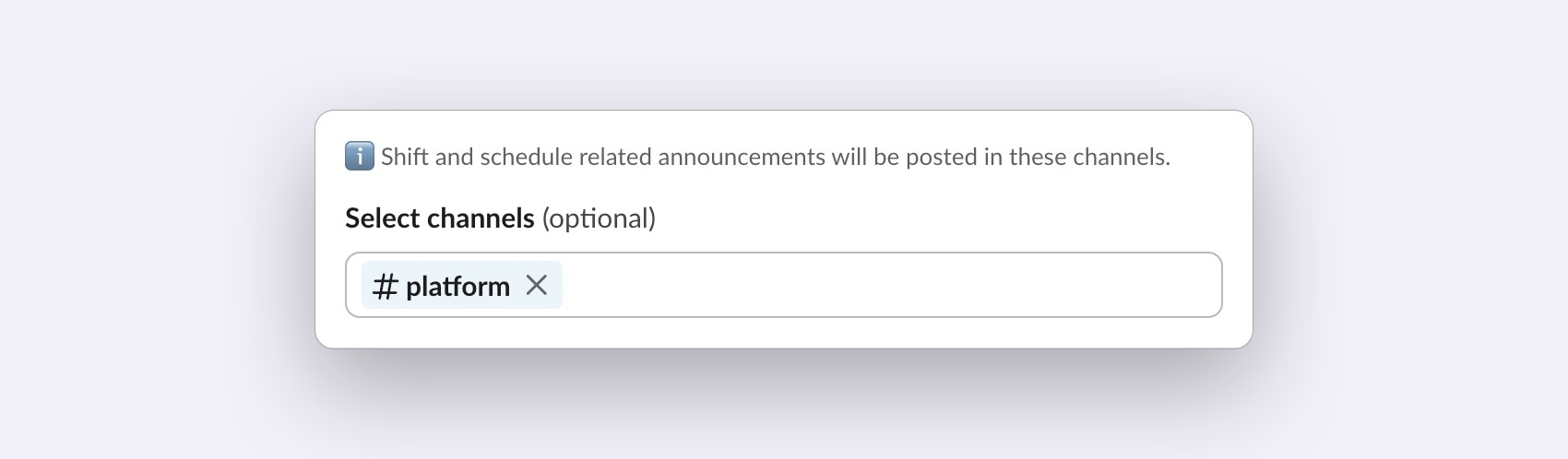 You can link Slack channels to schedules to receive notifications about shift and schedule changes.
Linked channels are currently limited to public channels only.
## Linking and unlinking channels to schedules
After creating a schedule, you will be prompted about linking Slack channels to the newly created schedule.
To link channels to an existing schedule:
1. Go to the Shiftkeeper home tab.
2. In the schedule list, click on the `...` button and then `Edit settings`.
3. Scroll down to the `Slack channels` section and add the channels.
1. Go to your schedule via the [Schedules](https://app.shiftkeeper.io/schedules) page.
2. Click on the `Edit` button and go to the `Notifications` tab.
3. Add the channels you would like to link and save the changes.
You can unlink schedule channels in a similar way.
You can link Slack channels to schedules to receive notifications about shift and schedule changes.
Linked channels are currently limited to public channels only.
## Linking and unlinking channels to schedules
After creating a schedule, you will be prompted about linking Slack channels to the newly created schedule.
To link channels to an existing schedule:
1. Go to the Shiftkeeper home tab.
2. In the schedule list, click on the `...` button and then `Edit settings`.
3. Scroll down to the `Slack channels` section and add the channels.
1. Go to your schedule via the [Schedules](https://app.shiftkeeper.io/schedules) page.
2. Click on the `Edit` button and go to the `Notifications` tab.
3. Add the channels you would like to link and save the changes.
You can unlink schedule channels in a similar way.